This tool is designed for laptop and desktop screens. On smaller displays, some controls may overlap or be hard to use.
For the best experience, open this tool on a laptop or larger screen.
📊 Market Structure Analyzer
Ivalpro · choose where to go
Assignment
Chart
Version
Saved ✓
DrawToolsGuidesZoomActions
Selected:—ColorWidth2Font16
📊 Paste your chart to begin
Ctrl+V to paste · drag & drop · or 📁 Upload
ChartQuick Label
Color
Width
2
Angle
Tool: Line · Color: BullishL line · C chain · F fib · B box · R circle · T text · S select · A axis · N note · Shift+click multi · drag empty area = box select · ↑↓ day · ←→ chart · Ctrl+Z undo · Ctrl+Y redo · Esc cancelShapes: 0
🔍 Compare
📊 My Version
(no version saved yet)
🎓 Instructor's Version
(no version saved yet)
🎯 Practice
(no practice yet)
📝 Notes for this chart
📚 Library
📝 Note
paste images directly with Ctrl+V
📎 Attachments
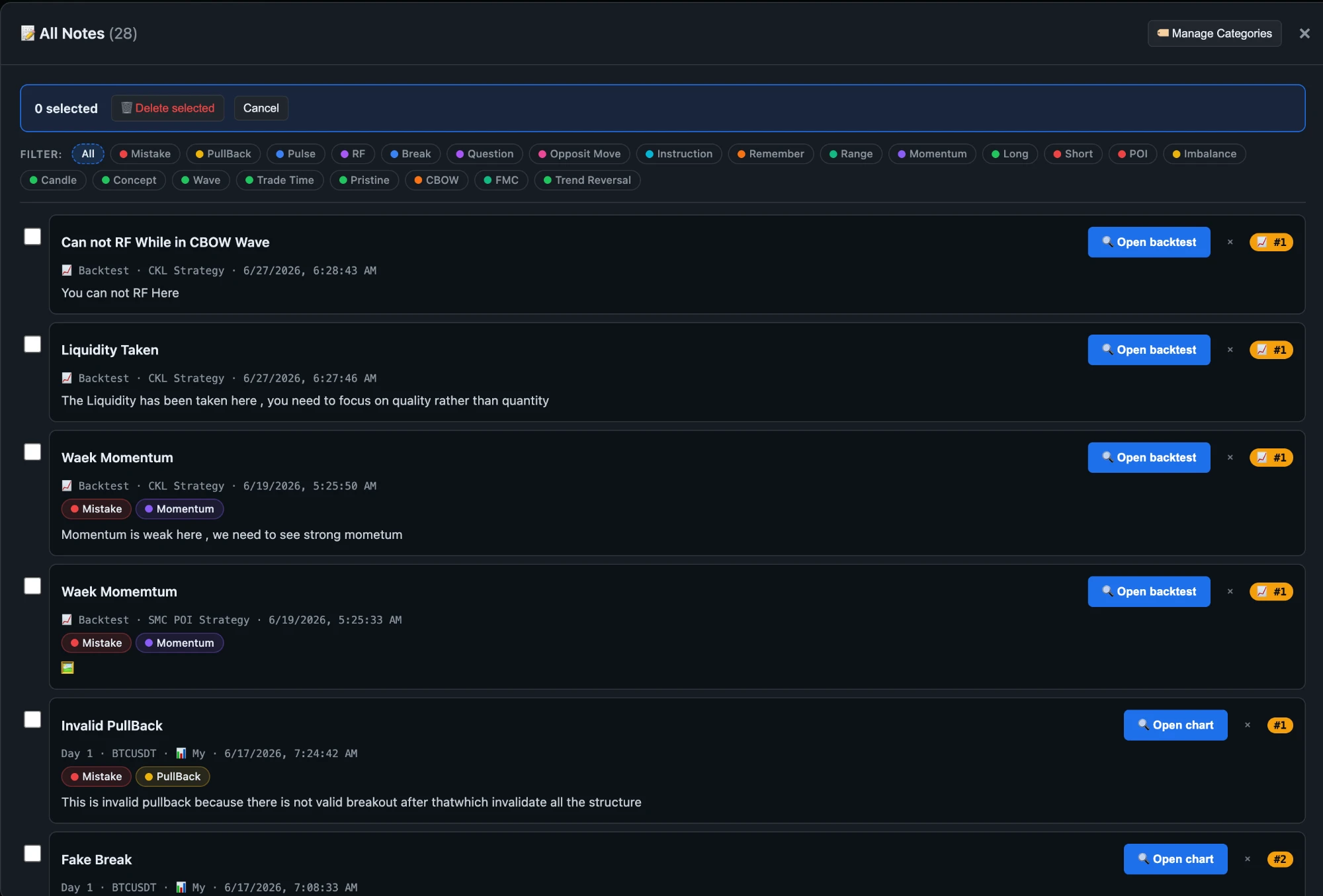
📝 All Notes
0 selected
📓 General Notes
Notes for yourself — rules, methodology, mistakes to avoid, anything not tied to a specific chart.
0 selected
🧠
Knowledge Base
Ivalpro · theory meets practice
0 cards
📈
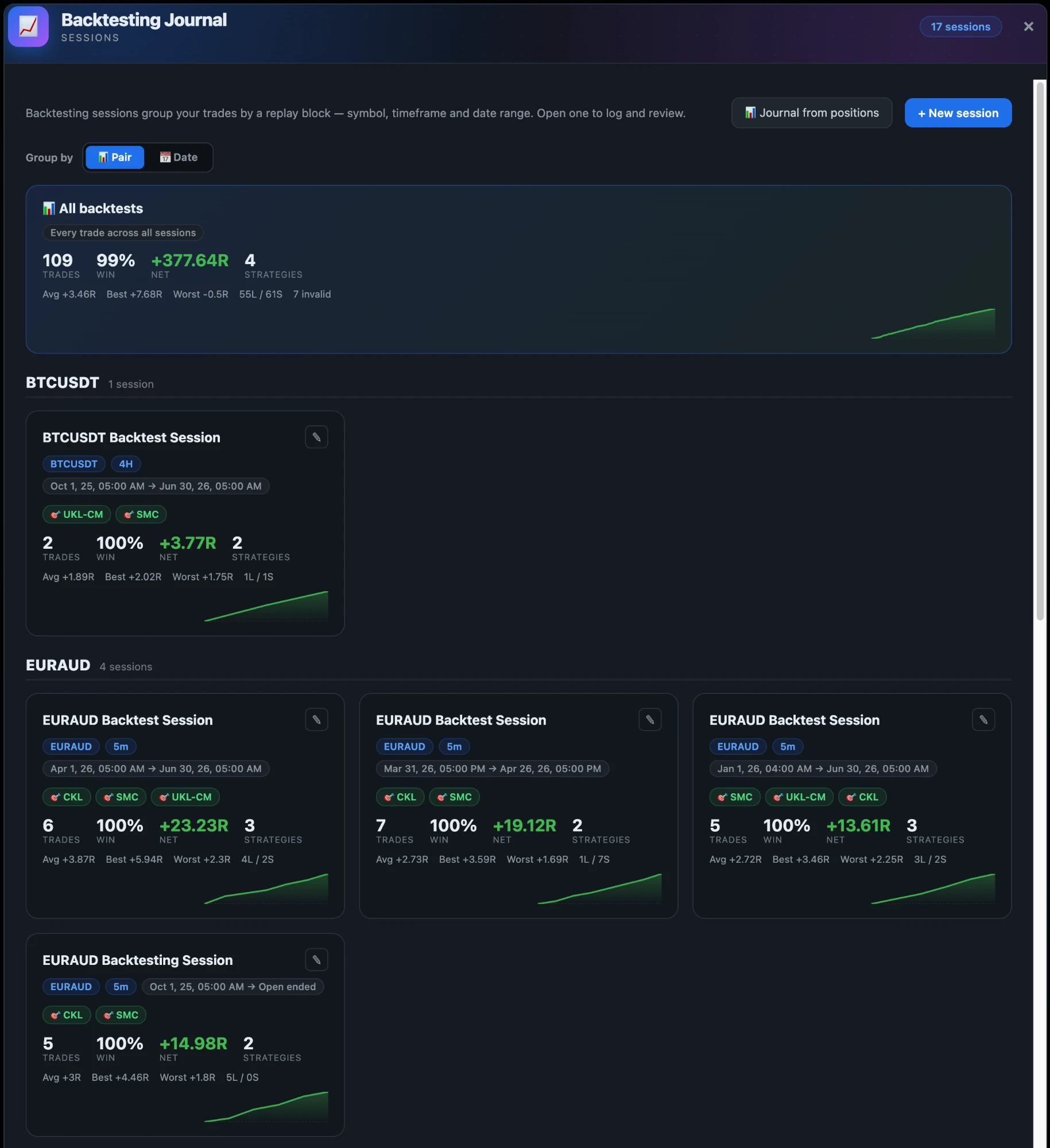
Backtesting Journal
Ivalpro · log & review your backtests
0 strategies
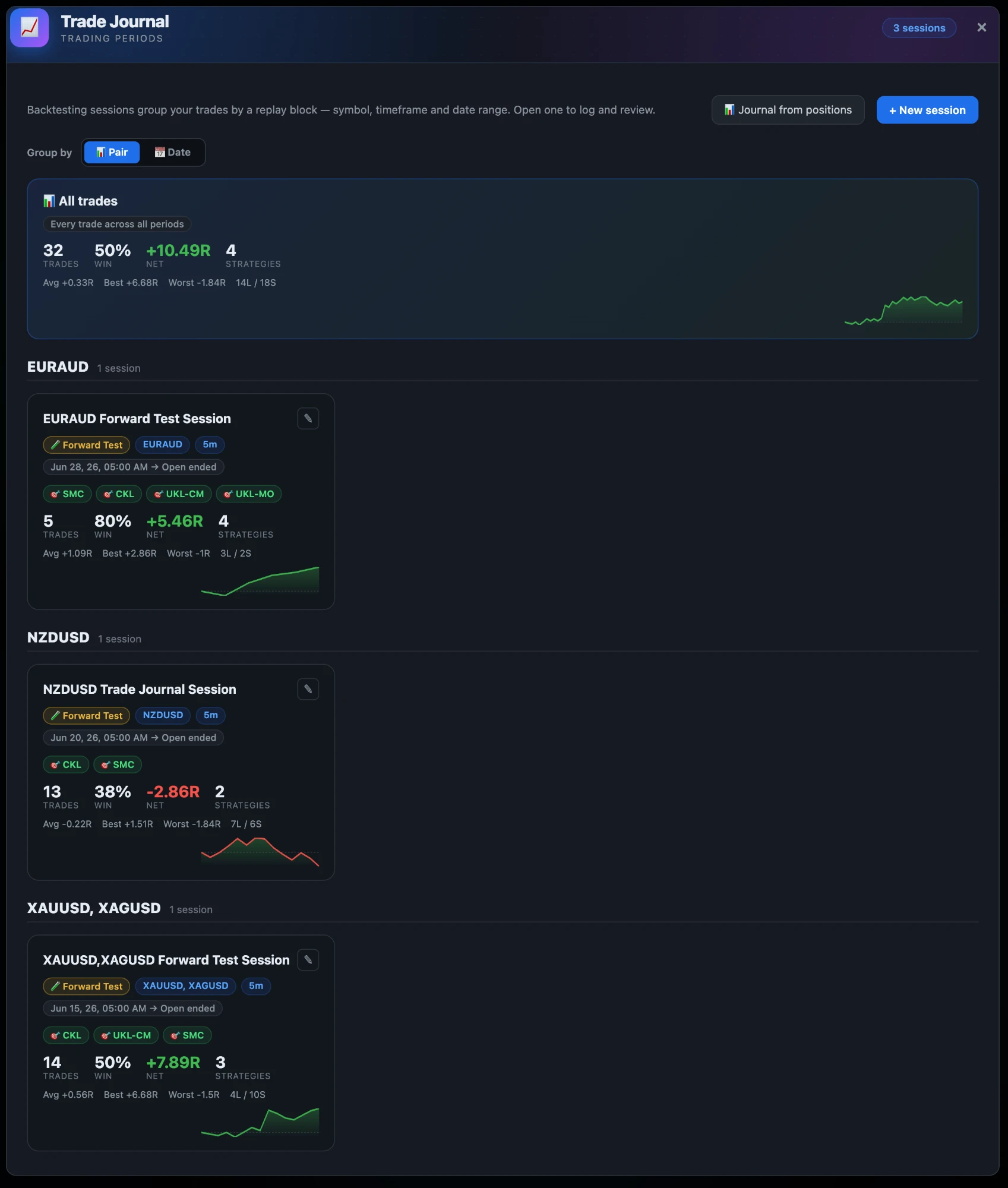
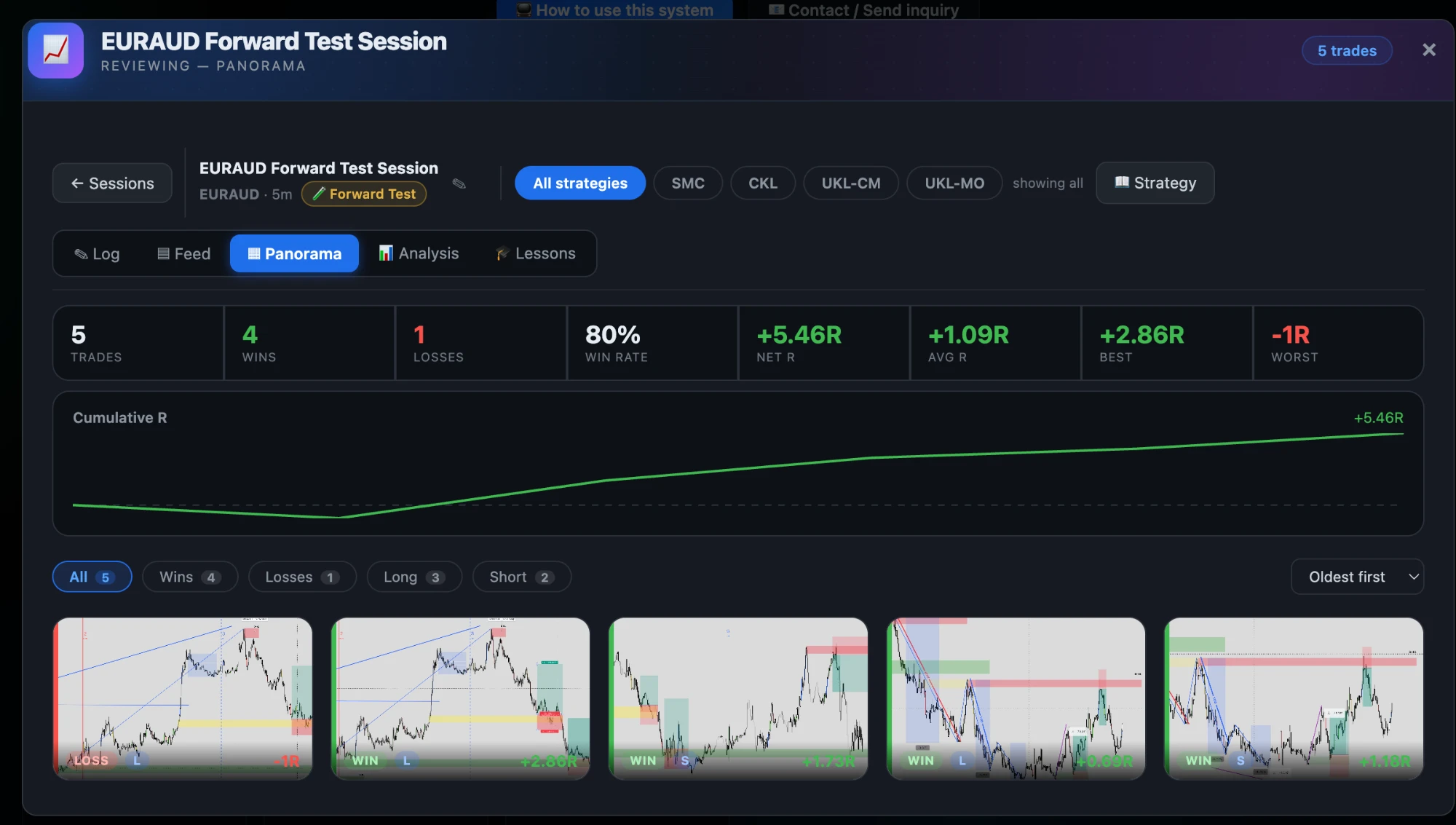
Backtesting sessions group your trades by a replay block — symbol, timeframe and date range. Open one to log and review.
Pick a strategy to log or review backtests. Strategies are your Knowledge Base cards with the 🎯 strategy flag turned on.
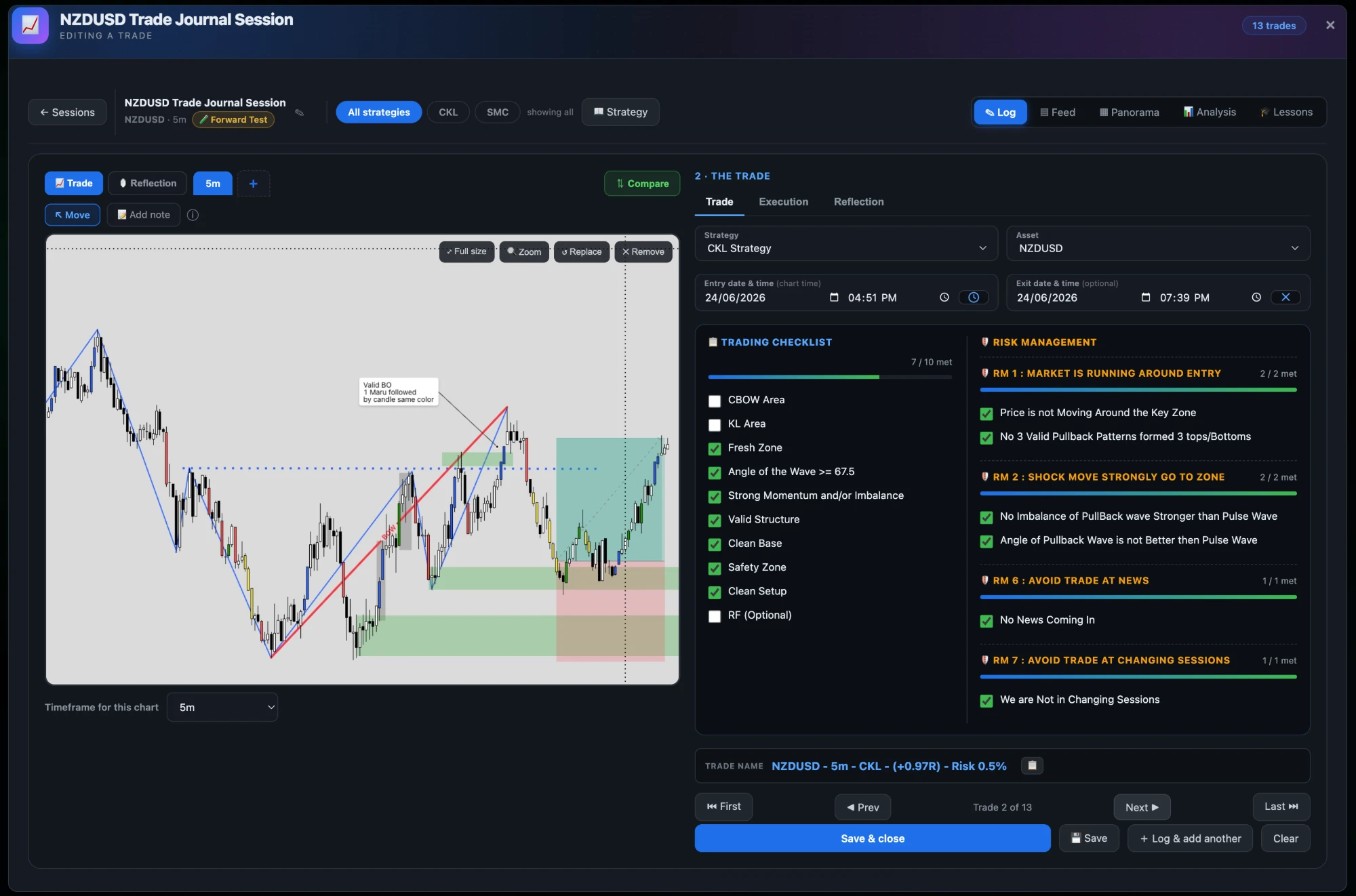
1 · Chart
Add note: drag a box on the chart · click a note to edit · drag to move
📋
Click & press Ctrl+V to paste your TradingView screenshot
or drag & drop an image
2 · The trade
Positive for profit (+2.5), negative for loss (-1). Sets the outcome automatically.
Execution
Reflection
Cumulative R
New session
Backtest
Chart
Note
paste images Ctrl+V
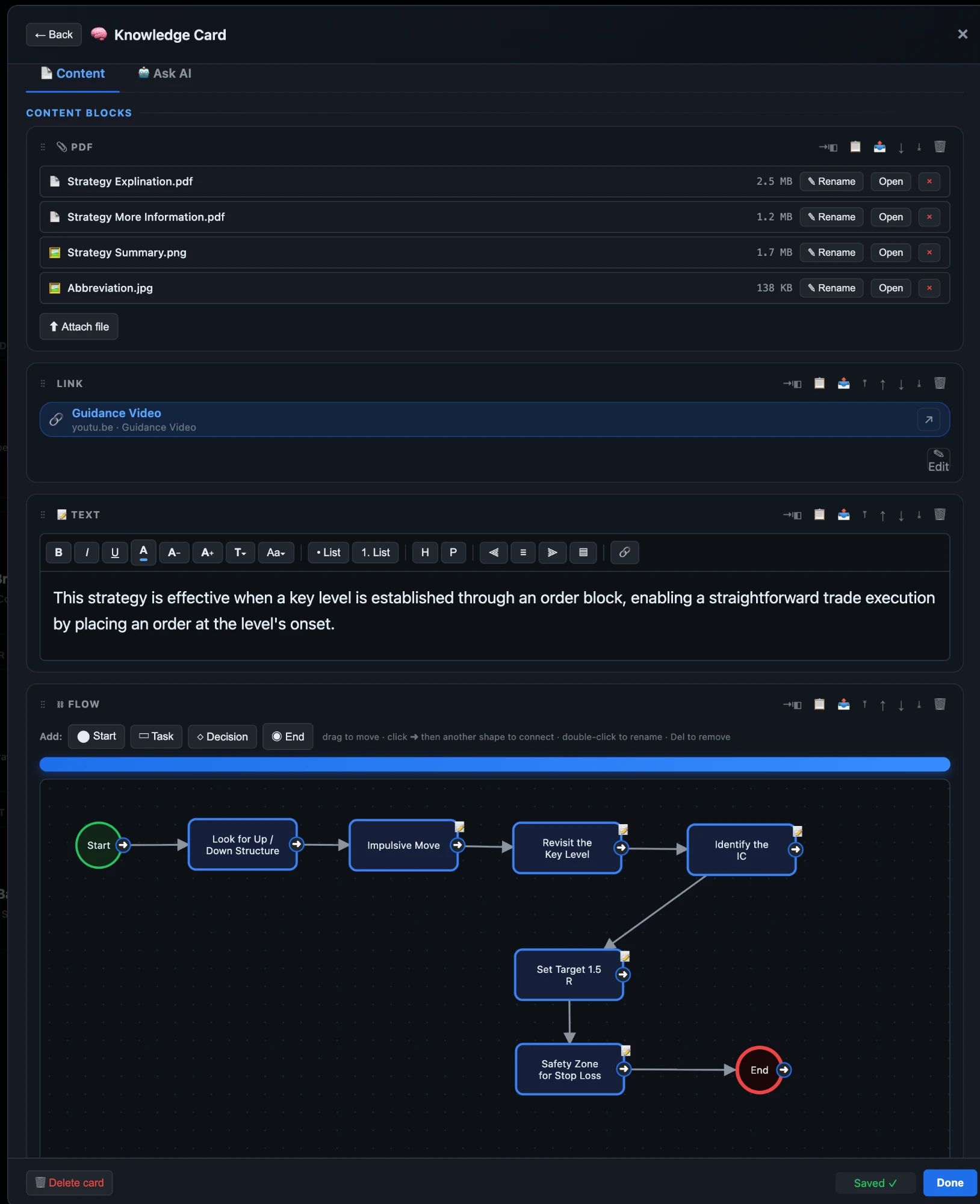
🧠 Knowledge Card
🧠
🧠 Knowledge Card
Content blocks
🔗 Related chart notes
🤖 Ask AI about this strategy
Answers come from this card's checklist & text. Uses an open AI model — may be imperfect; verify against your rules.
🎨 Choose an icon
Pick a ready-made trading concept icon for this card's cover.
▭ Step details
Details
💾 Storage
Browser storage for this tool
—
of —
— free
📷 JPEG compression for new pastes
Compresses pasted/uploaded charts to JPEG at 95% quality (saves ~55%)
Re-encodes every PNG chart in your data to JPEG. Safe to run multiple times.
💡 Tips to free up space:
• Enable JPEG compression + run "Compress all" → typically saves 55%
• Backup with PDFs included, then remove PDFs from old assignments
• Delete unused charts from older assignments
⬇ Backup Options
⚠
🏷 Manage Categories
Categories help you organize and filter notes by topic. Click the color dot to change, or use the buttons to rename or delete.
Add new category
Color:
📅 Day View
📆 Pick days to compare
Select one or more assignments. Their charts will be shown in a long scrollable side-by-side view.